
Read Delta Tables with Snowflake via Unity Catalog

Data practitioners often struggle to choose between open data formats like Apache Iceberg and Delta Lake (Linux Foundation) due to inconsistent support across different data platforms. To address this, Databricks introduced Uniform in 2023 and acquired Tabular (the creator of Iceberg) in 2024. Uniform enables interoperability between open data formats (Delta, Iceberg and Hudi), allowing data practitioners to access table data in cloud object storage (S3, ADLS, GCS) regardless of which data platform they choose and governed with Unity Catalog.
This article explores how Snowflake can access Delta tables governed by Unity Catalog using 3 methods below:
- Read Iceberg with Unity Catalog credential vending without external volumes: available for Managed + external UC tables in AWS, only managed UC table in Azure and GCP
- Read Iceberg with Unity Catalog credential vending and external volume (Managed + External UC tables on all clouds)
- Read Delta as external Iceberg table with object storage catalog integrations (Managed+External UC tables on all clouds)
Enabling Iceberg Reads in Databricks
As Uniform is only a feature to enable format interoperability, for the remainder of this document, Delta tables with Iceberg Uniform will be referred to as tables with Iceberg reads.
In the Databricks workspace, Iceberg reads can be enabled on an existing Delta table or on a new Delta table in Unity Catalog. This is a 2-step process:
- Enable Iceberg reads on Delta table
- Set up Unity Catalog for Iceberg REST API
Requirements
- Databricks workspace
- Unity Catalog with external access on metastore (or Metastore admin privilege to enable metastore external access)
- Databricks UC-enabled cluster with DBR 15.4+
Step 1: Enable Iceberg reads on a Delta table
Create a Delta Table with Iceberg reads
In Databricks, we can enable Iceberg reads on a Unity Catalog managed or external table using table properties:
create or replace table ahc_demos.tpcds_sf_100.store_sales
tblproperties(
  'delta.columnMapping.mode' = 'name',
  'delta.enableIcebergCompatV2' = 'true',
  'delta.universalFormat.enabledFormats' = 'iceberg')
as select * from tpcds.sf_100.store_sales
After the table is created, Iceberg metadata will be created along with Delta metadata, which allows the table to be read by both Delta and Iceberg readers. The location of the Iceberg metadata JSON file can be found by running explain detail <table_name> or by viewing the table details from Catalog Explorer view. Similar to Delta metadata, Iceberg uses this metadata file to store information about a table schema, partition information, and the snapshot details for table versioning.
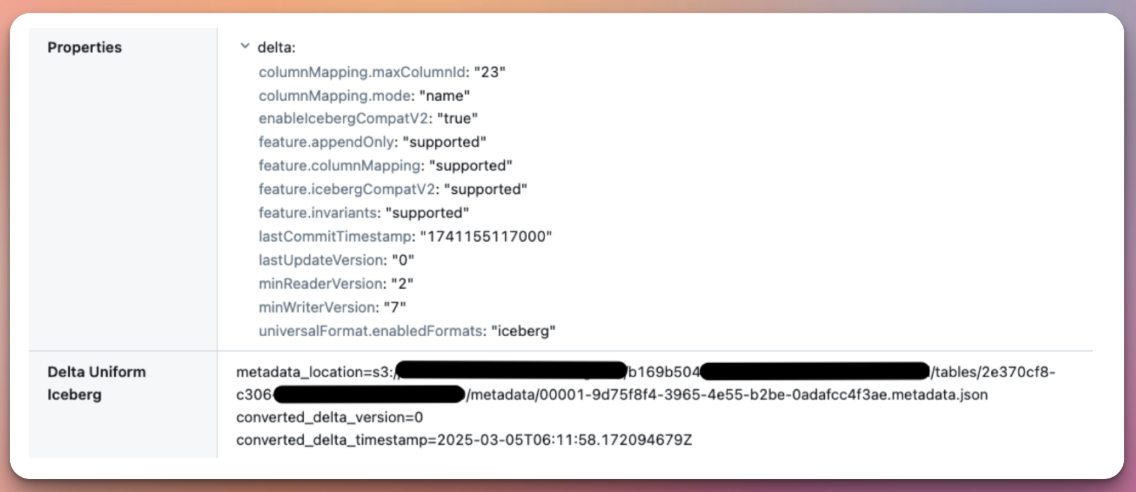
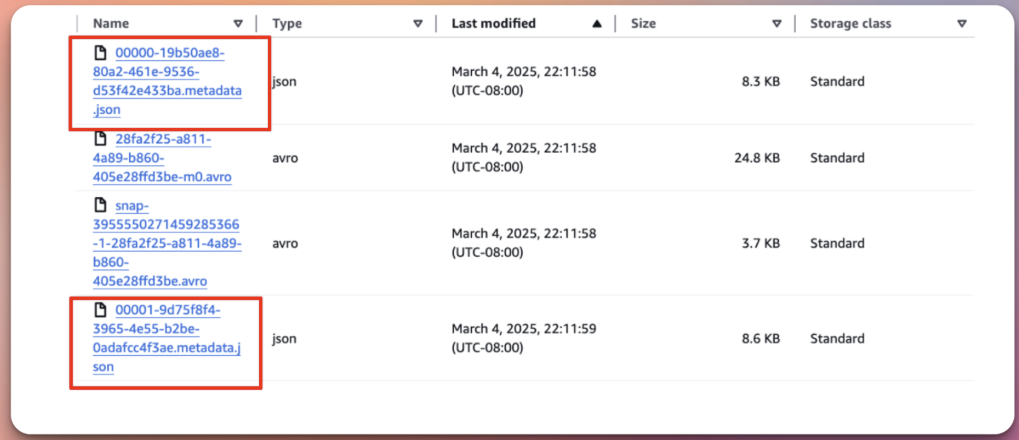
In the cloud storage where the table is saved, in addition to the _delta_log folder which contains Delta metadata, there's also a metadata folder containing Iceberg metadata. This folder has multiple versions of JSON metadata files, as well as Avro manifest files. The Iceberg metadata JSON file adheres to the format <version>-<uuid>-metadata.json, where the latest version represents the most recent stage of the table. Avro manifest files store a list of data files along with column-level metrics, partitions, schema, and stats. In Iceberg, these are used for file pruning and table versioning for time travel.
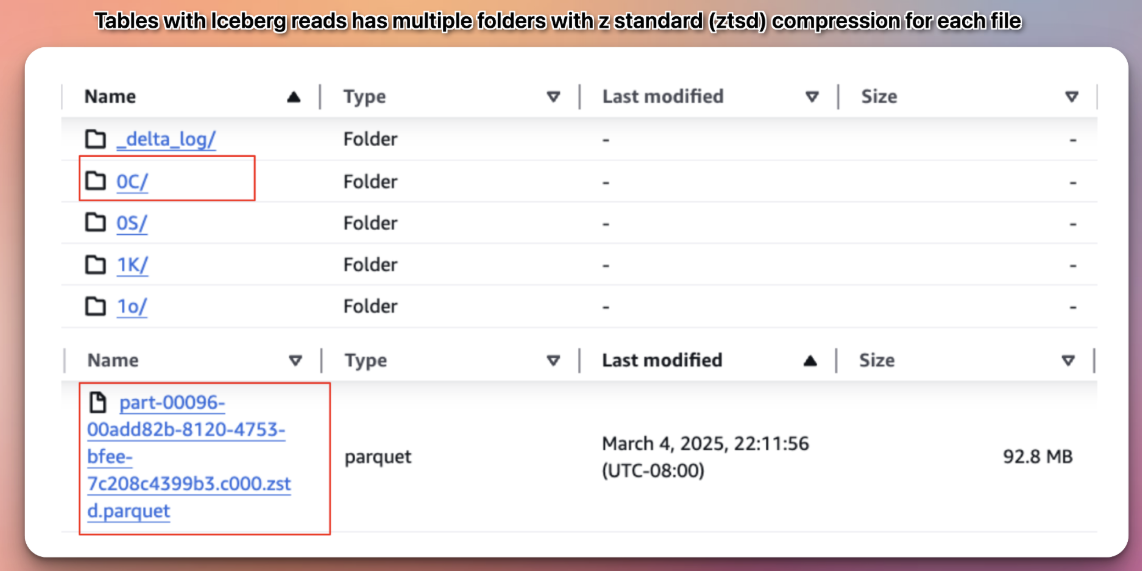
Data files are also compatible with both Delta and Iceberg formats. For example, while Delta tables use snappy parquet files, tables with Iceberg reads use z-standard (Zstd) compression for Iceberg compatibility. The choice of Zstd also helps with storage cost and Zstd has a higher compression ratio and smaller file sizes. Note that if you add Iceberg table properties after the table has been created, the existing data files won't be rewritten from Snappy to Zstd. However, any files written after the properties are enabled will use Zstd
Improving Delta Read Performance with Liquid Clustering
Liquid Clustering is a Delta feature that doesn't influence Iceberg read performance, while still providing the performance boost for Delta readers. Tables with Iceberg reads do not support Deletion Vectors (this will change in Iceberg v3), and as a result, Deletion Vectors are not auto-enabled with liquid clustering.
The rule is to choose columns that are frequently used as filtering or join keys as liquid clustering columns (s_customer_sk, s_sold_date_sk in this example).
After that, run optimize to trigger the clustering of data, this step is required to ensure optimal data layout according to the clustering key
alter table ahc_demos.tpcds_sf_100.store_sales
cluster by (s_customer_sk, s_sold_date_sk);

-- run optimize to trigger clustering
optimize ahc_demos.tpcds_sf_100.store_sales;
Step 2: Set up Unity Catalog for Iceberg REST API
Unity Catalog enables table reads for Iceberg clients by exposing an Iceberg REST API. From the Databricks workspace, we can enable access by performing the following steps:
-
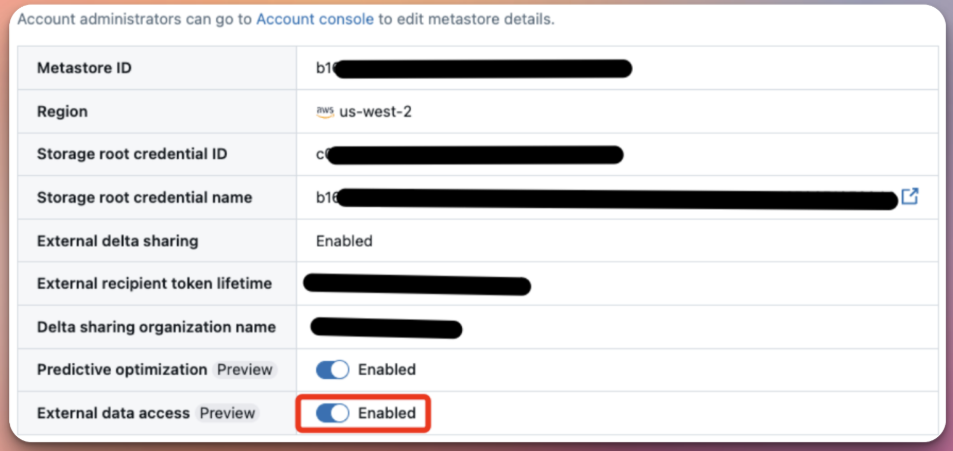
Enable External data access for your metastore ( require metastore admin permission). See Enable external data access on the metastore.
-
Grant the user or service principal the EXTERNAL USE SCHEMA privilege on the schema containing the tables. See Grant a principal EXTERNAL USE SCHEMA.
Option 1: Grant permission to a user (if using Databricks PAT authentication)
GRANT EXTERNAL USE SCHEMA ON SCHEMA ahc_demos.tpcds_sf_100 TO `a***@databricks.com`Option 2: Grant permission to a service principal (if using OAuth authentication)
GRANT EXTERNAL USE SCHEMA ON SCHEMA ahc_demos.tpcds_sf_100 TO `<application_id>`The service principal application Id can be found under Workspace settings / Identity and access / Service principals on the Databricks workspace.
Read data In Snowflake
From your Snowflake account, we will query the UniForm tables created above as Iceberg external tables using Unity Catalog as remote Iceberg REST Catalog:
- Create a catalog integration with Unity Catalog using Iceberg Rest API
- Create an External volume (only applicable to external UC tables)
- Create an external Iceberg table
Step 1: Create a catalog integration using Iceberg Rest Catalog
For Snowflake to authenticate with the Unity Catalog metastores with Catalog Integration, we can use OAuth and PAT created in Databricks (See Authorizing access to Databricks resources). Authenticate using a Databricks PAT (if authenticated with an individual user) or OAuth (if authenticated with Service Principal). In production, it's recommended to use OAuth instead of PAT
In the Snowflake account, create or open a SQL worksheet, then run the below query to create catalog integration
OAuth option
CREATE OR REPLACE CATALOG INTEGRATION uc_int_oauth
  CATALOG_SOURCE = ICEBERG_REST
  TABLE_FORMAT = ICEBERG
  CATALOG_NAMESPACE = 'default'
  REST_CONFIG = (
    CATALOG_URI = 'https://<databricks_workspace_url>/api/2.1/unity-catalog/iceberg'
    WAREHOUSE = 'ahc_demos',
    ACCESS_DELEGATION_MODE = VENDED_CREDENTIALS
  )
  REST_AUTHENTICATION = (
    TYPE = OAUTH
    OAUTH_TOKEN_URI = 'https://<databricks_workspace_url>/oidc/v1/token'
    OAUTH_CLIENT_ID = '69d2fa6d-**********'
    OAUTH_CLIENT_SECRET = 'dose**********'
    OAUTH_ALLOWED_SCOPES = ('all-apis', 'sql')
  )
ENABLED = TRUE;OAUTH_CLIENT_ID: Service principal client ID from DatabricksOAUTH_CLIENT_SECRET: Service principal client secret from Databricks
PAT option
CREATE OR REPLACE CATALOG INTEGRATION uc_int_pat
  CATALOG_SOURCE = ICEBERG_REST
  TABLE_FORMAT = ICEBERG
  CATALOG_NAMESPACE = 'default'
  REST_CONFIG = (
    CATALOG_URI = 'https://<databricks_workspace_url>/api/2.1/unity-catalog/iceberg',
    WAREHOUSE = 'ahc_demos',
    ACCESS_DELEGATION_MODE = VENDED_CREDENTIALS
  )
  REST_AUTHENTICATION = (
    TYPE = BEARER
    BEARER_TOKEN = 'dapi****************'
  )
ENABLED = TRUE;BEARER_TOKEN: PAT token of the user in Databricks
Note: WAREHOUSE is the Unity catalog name in Databricks, NOT the name of the Snowflake Warehouse
After that, run the below query to verify the catalog integration
SELECT SYSTEM$VERIFY_CATALOG_INTEGRATION('uc_int_pat');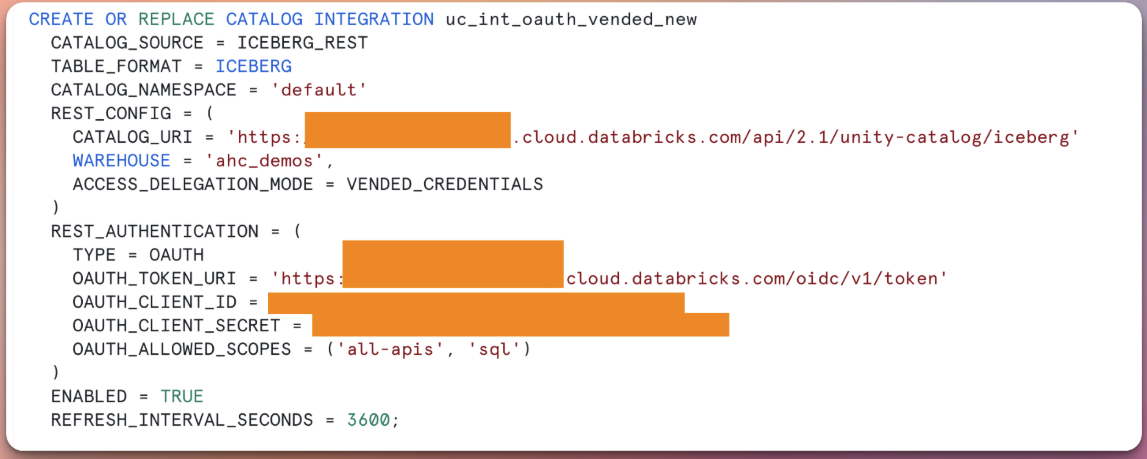
Note:
When OAuth Secret or PAT token expires, the REST AUTHENTICATION within the Catalog Integration cannot be altered (see Alter Catalog Integration)
We also cannot drop or replace a Snowflake catalog integration if one or more Iceberg tables are associated with it, as these tables depend on the catalog integration for metadata and schema information.
If the tokens expire, you will have to create a new catalog integration and recreate the Iceberg tables to point to the new catalog integration.
Step 2: Create an External volume
This step is not required if ACCESS_DELEGATION_MODE = VENDED_CREDENTIALS is specified in Catalog Integration for UC-managed tables (and UC-external tables in AWS). But it's necessary for UC external tables in Azure and GCP (See Use catalog-vended credentials for Apache Iceberg tables)
Below is an example using S3:
CREATE OR REPLACE EXTERNAL VOLUME iceberg_external_volume
   STORAGE_LOCATIONS =
      (
            NAME = 'ahc-demo-s3-west'
            STORAGE_PROVIDER = 'S3'
            STORAGE_BASE_URL = 's3://ahc-demo-s3-west/'
            STORAGE_AWS_ROLE_ARN = 'arn:aws:iam::*******:role/ahc-role-snowflake'
            STORAGE_AWS_EXTERNAL_ID = 'snowflake_******'
      );

desc external volume iceberg_external_volume;
Verify the external volume connectivity
SELECT SYSTEM$VERIFY_EXTERNAL_VOLUME('iceberg_external_volume');Step 3: Create an Iceberg table
CREATE ICEBERG TABLE tpcds_store_sales_iceberg
  CATALOG = uc_int_oauth
  CATALOG_NAMESPACE = 'tpcds_sf_100'
  CATALOG_TABLE_NAME = 'store_sales'
  AUTO_REFRESH = TRUE
  -- uncomment below if you use external UC tables in Azure and GCP
  -- EXTERNAL_VOLUME = iceberg_external_volume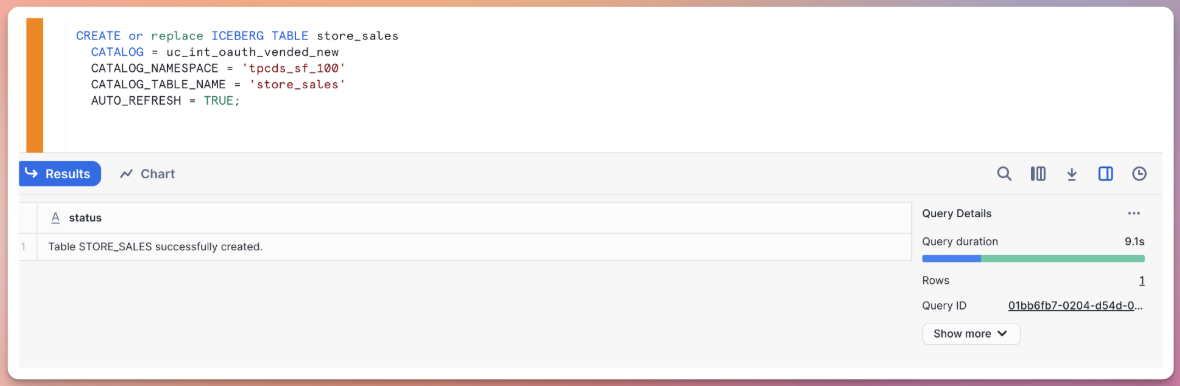
- catalog: name of the unity catalog integration created above
- catalog_namespace: name of the unity catalog schema in Databricks
- catalog_table_name: name of the table in Databricks
Create external Iceberg tables with Delta metadata
(See Create Iceberg table with Delta files in object storage)
Snowflake also has the capability to directly read Delta tables from object storage by utilizing object store catalog integration. However, this method circumvents Unity Catalog through the Iceberg Rest Catalog, which breaks Unity Catalog governance, so it's not a recommended approach.
The following code examples demonstrate how to use Delta metadata to create external Iceberg tables in Snowflake. To do this, we need to create an Iceberg external table based on an Object Store catalog integration with Delta as table format and authenticate using external volume.
CREATE OR REPLACE CATALOG INTEGRATION delta_catalog_integration
  CATALOG_SOURCE = OBJECT_STORE
  TABLE_FORMAT = DELTA
  ENABLED = TRUE
  REFRESH_INTERVAL_SECONDS = 86400;

CREATE OR REPLACE EXTERNAL VOLUME iceberg_external_volume
  STORAGE_LOCATIONS =
     (
        (
           NAME = 'ahc-demo-s3-west'
           STORAGE_PROVIDER = 'S3'
           STORAGE_BASE_URL = 's3://ahc-demo-s3-west/'
           STORAGE_AWS_ROLE_ARN = 'arn:aws:iam::332745928618:role/ahc-role-snowflake'
           STORAGE_AWS_EXTERNAL_ID = 'snowflake_iceberg_external_id'
        )
     );

CREATE ICEBERG TABLE customer
  BASE_LOCATION = 'customer'
  EXTERNAL_VOLUME = 'iceberg_external_volume'
  CATALOG = 'delta_catalog_integration';
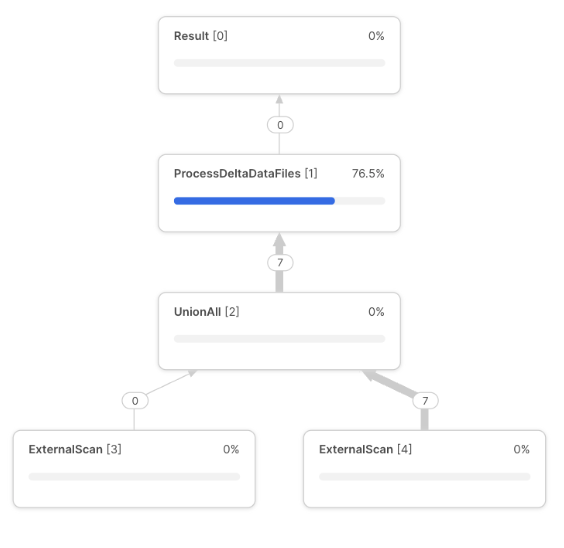
Using this option, Snowflake's query plan will have an additional task to process Delta Data Files
Conclusion
These methods highlight the strong interoperability between Delta tables and Snowflake and emphasize the ability of users to leverage Unity Catalog to govern a single copy of their data and access it seamlessly across both platforms.
This capability enables organizations to leverage the strengths of both Delta Lake and Iceberg, optimizing their data architecture for performance, scalability, and cost-efficiency.